release:
How to sign Excel documents the easy and secure way
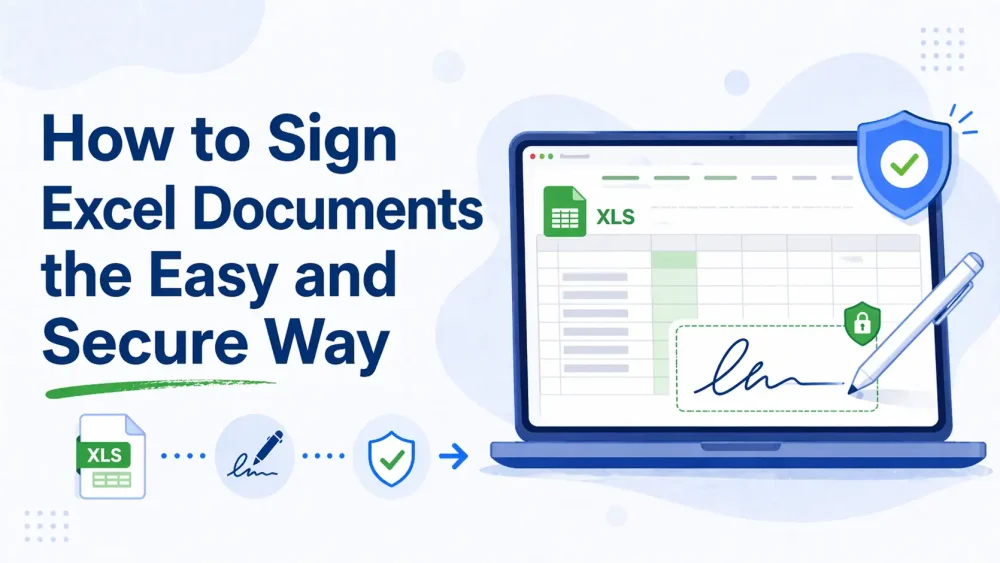
Knowing how to sign Excel documents can save time, reduce errors, and keep approvals moving without the hassle of printing and scanning. Whether you are finalizing internal reports, financial sheets, or client-facing agreements, understanding the different ways to add an electronic signature is essential. Some methods are quick but offer limited security, while others provide full audit trails, verification, and legal confidence. This guide explains the practical options for signing Excel files, what to consider before choosing a method, and how to make the process as smooth and reliable as possible.
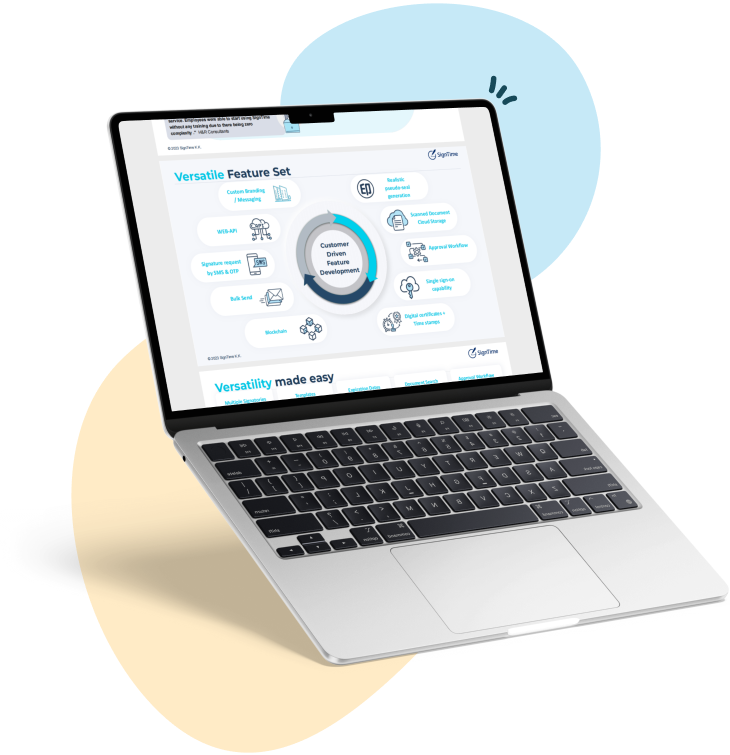
See why businesses are rushing to SignTime’s feature-packed contract repository system.
Why electronic signatures matter for Excel documents
Electronic signatures help businesses move faster by eliminating the delays and inefficiencies of paper-based processes. Excel files are often used for contracts, approvals, and financial reports, so waiting for printing, signing, and scanning can slow down critical workflows.
Using digital signatures improves accountability and traceability by showing exactly who signed a document and when. They reduce the risk of errors or tampering and make it easier to maintain a clear record of approvals. For businesses that handle multiple approvals or need to share files with external partners, electronic signatures are not just convenient—they are a practical necessity.
Can you sign an Excel document digitally?
Similar to Word, Excel offers several ways to add a signature, but not all are the same in terms of security and legal recognition. Some methods, like inserting an image or using the drawing tools, create a visual signature that shows approval but does not verify the signer or prevent edits.
Other approaches, such as digital certificates or third-party add-ons, provide more robust verification and tamper-evident records. Proper digital signatures can confirm the identity of the signer, lock the document to prevent changes, and create an audit trail that records when and by whom the file was signed. Understanding the differences between visual and verified signatures is essential before choosing a method.
What to consider before choosing a signing method
Before adding a signature to an Excel document, it is important to understand how the document will be used and who will need to sign it. Not every spreadsheet requires the same level of security, and choosing the right approach can save time and reduce risks.
Key factors to consider include:
- You should determine whether the document needs to be legally binding, such as a contract or financial agreement.
- You should decide if the file will remain internal or be shared with external clients, vendors, or partners.
- You should identify how many people need to sign the document and whether signatures will be collected sequentially or simultaneously.
- You should check if the document needs to remain editable after signing or if it should be locked to prevent changes.
- You should consider whether you need an audit trail or record of who signed and when to ensure accountability.
Evaluating these questions first helps you choose the most suitable method, whether it is a quick visual signature or a fully verified, secure solution.
Practical ways to sign Excel documents
There are several ways to add a signature to an Excel document, each with different levels of convenience, security, and legal recognition. The right method depends on the type of document, who is signing, and whether the file needs to remain editable.
Here are some ways to sign Excel documents:
- You can insert an image of a handwritten signature, which is quick and simple for internal approvals but does not prevent tampering or provide legal verification.
- You can use Excel’s drawing tools to create a signature with a mouse, stylus, or touchscreen, which is convenient for casual approvals but lacks enforceability.
- You can add a signature line, a built-in Excel feature that indicates where a signature should go, which is useful for printed documents but provides limited digital security.
- You can export the Excel file as a PDF and annotate it with a signature, which preserves formatting and offers more stability, but still may not provide a full audit trail without dedicated e-signature tools.
- You can use a third-party add-on, which may provide identity verification, signing workflows, and audit trails, though it may require setup or additional accounts.
- You can export the Excel document as a PDF and upload it to SignTime, which enables secure, tamper-evident signatures, multi-signer workflows, and easy tracking through integrations such as Salesforce.
Pros and cons of different signing methods
Choosing the right way to sign an Excel document requires understanding the trade-offs between speed, security, and legal reliability. Inserting an image of a signature is fast and simple, making it convenient for internal approvals. However, this method does not prevent edits or provide verification, so it is not suitable for legally binding documents.
Using Excel’s drawing tools is a natural and quick option, especially if you have a touchscreen or stylus. It works well for casual approvals, but signatures created this way are not legally enforceable and offer no tamper protection. Adding a signature line helps indicate where a signature should go, which is particularly useful for printed documents, but it provides limited security in digital workflows.
Exporting the Excel file as a PDF and annotating it preserves formatting and offers more stability. This approach is moderately secure, but without a dedicated e-signature platform, it does not provide a full audit trail, and you can’t add proper signature blocks. Third-party add-ons can improve verification, workflow management, and tracking, but they may require installation, additional accounts, or extra setup.
Finally, exporting the Excel document as a PDF and uploading it to SignTime provides tamper-evident, auditable signatures. It supports multiple signers and integrates with tools like Salesforce, though it requires converting the Excel file to PDF first. Considering these advantages and limitations will help you select the method that best balances convenience and security for your documents.
Tips for secure Excel signing
Before adding signatures, taking a few precautions can help ensure your Excel documents remain accurate and trustworthy. Secure signing starts with preparation, including backing up the original file to prevent accidental loss or overwriting.
Locking cells or sheets after signing can prevent edits and preserve the integrity of your document. Using timestamps or version tracking is useful when multiple people need to sign sequentially, ensuring that every action is recorded and traceable. Converting the final Excel file to PDF before sharing can preserve formatting and make signatures easier to manage.
Maintaining a centralized location for signed documents also helps with compliance and record-keeping, making it simple to retrieve and verify approvals later. By following these practices, you can improve both the security and reliability of your Excel signing workflow, regardless of which method you choose.
SignTime makes signing documents easier and more secure
Uploading an Excel file directly to SignTime provides a secure and streamlined way to collect signatures. SignTime automatically converts the Excel file into a PDF, eliminating the need for manual export. The platform then creates tamper-evident, auditable records that clearly show who signed each document and when, giving businesses full confidence in their approvals.
SignTime supports multiple signers and tracks every step in the workflow, making it easier to manage complex approval processes. Its integration with tools like Salesforce helps keep document management organized and efficient, reducing errors and manual follow-ups.
Even for businesses that only need a partial solution, using SignTime with PDF versions of Excel documents simplifies the signing process while maintaining security. It balances convenience with reliability, ensuring that signatures are professional, verifiable, and easy to track.
Download our brochure to see whether SignTime might be a fit for your organization.